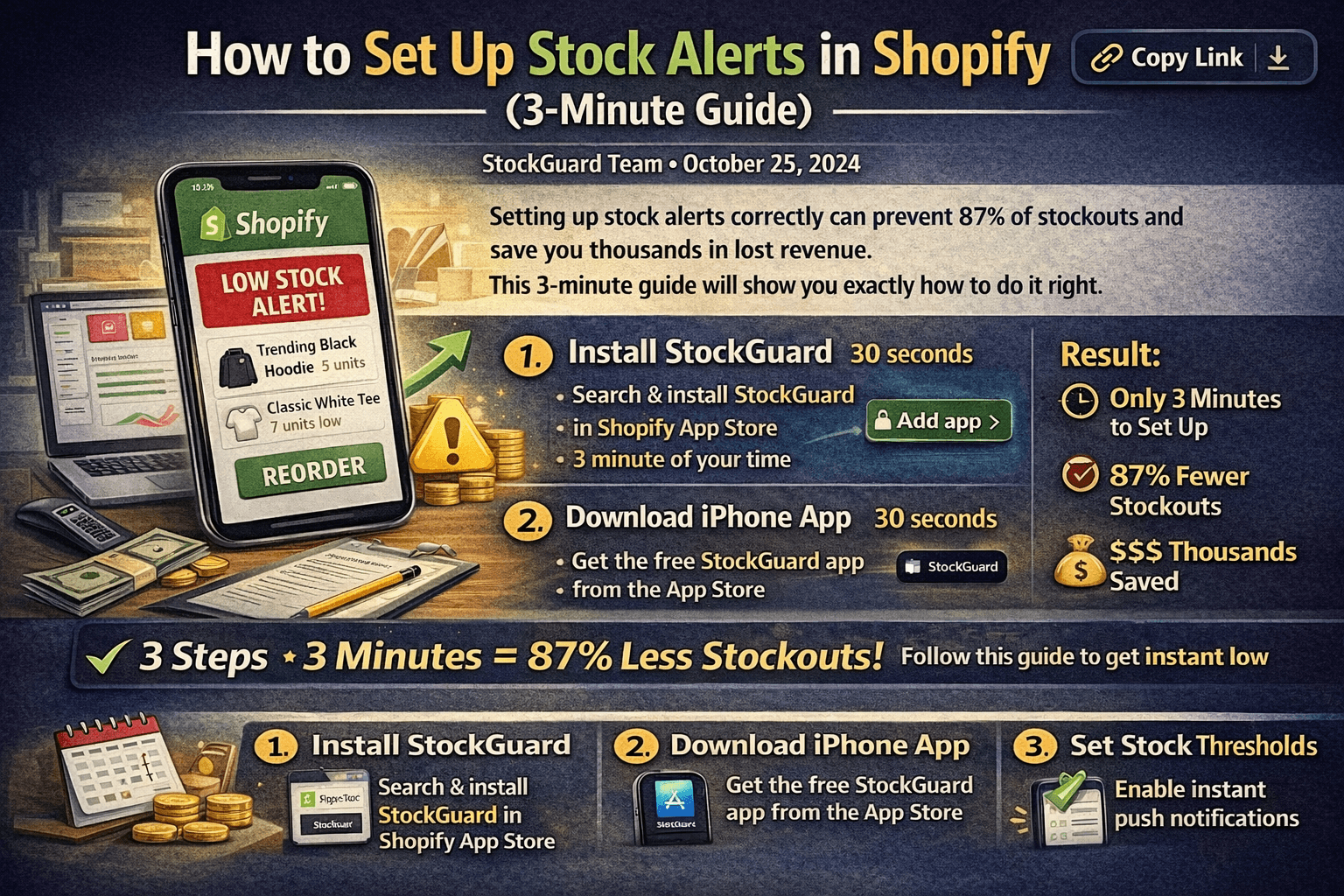
How to Set Up Stock Alerts in Shopify (3-Minute Guide)

Setting up stock alerts correctly can prevent 87% of stockouts and save you thousands in lost revenue. This 3-minute guide will show you exactly how to do it right.
#Why Most Stock Alerts Fail
Before we dive into setup, understand this: 98% of merchants use email alerts, and they fail because:
- Emails get buried in spam
- You check email irregularly
- No urgency signal
- Too easy to ignore
The solution: Push notifications to your iPhone. They're 10x more effective.
#What You'll Need
- A Shopify store (any plan)
- An iPhone (iOS 14 or later recommended)
- 3 minutes of your time
- Basic product knowledge (reorder times)
Focus on your top 20% of products first. They generate 80% of your revenue and are most critical to monitor.
#Step 1: Install StockGuard (30 seconds)
- Visit the Shopify App Store
- Search for "StockGuard"
- Click "Add app"
- Authorize Shopify permissions
What permissions does it need?
- Read inventory levels (to monitor stock)
- Read product data (to identify which products)
That's it—no payment info needed for the 7-day trial.
#Step 2: Download the iPhone App (30 seconds)
- Open the App Store on your iPhone
- Search "StockGuard"
- Tap "Get" to download
- Open the app
- Sign in with your Shopify store URL
Your store URL format: yourstore.myshopify.com
#Step 3: Enable Push Notifications (15 seconds)
When the app prompts you:
- Tap "Allow" for push notifications
- Choose notification sound (we recommend "Alert" for urgency)
- Enable "Show on Lock Screen"
- Enable "Vibrate"
If you accidentally tap "Don't Allow", you'll need to manually enable notifications in iPhone Settings > Notifications > StockGuard. Don't skip this—notifications are the whole point!
#Step 4: Set Stock Thresholds (90 seconds)
This is where the magic happens. Set smart thresholds for each product category:
#For Fast-Moving Products
Definition: Sells 10+ units per day
Recommended threshold:
Threshold = (Average Daily Sales × 2) + Safety Buffer (10 units)
Example:
- Average daily sales: 15 units
- Threshold: (15 × 2) + 10 = 40 units
- Reorder when you hit 40 units in stock
#For Medium-Velocity Products
Definition: Sells 3-9 units per day
Recommended threshold:
Threshold = (Average Daily Sales × 5) + Safety Buffer (15 units)
Example:
- Average daily sales: 5 units
- Threshold: (5 × 5) + 15 = 40 units
#For Slow-Moving Products
Definition: Sells 1-2 units per day
Recommended threshold:
Threshold = (Average Daily Sales × 10) + Safety Buffer (5 units)
Example:
- Average daily sales: 1 unit
- Threshold: (1 × 10) + 5 = 15 units
#Quick Reference Table
| Product Velocity | Daily Sales | Suggested Threshold | Reorder Frequency |
|---|---|---|---|
| Fast | 10+ units | 40-50 units | Weekly |
| Medium | 3-9 units | 30-40 units | Bi-weekly |
| Slow | 1-2 units | 15-20 units | Monthly |
| Very Slow | <1 unit | 10 units | Quarterly |
#Step 5: Configure Alert Settings (30 seconds)
#Daily Digest vs. Instant Alerts
Instant Alerts (Recommended for A-tier products):
- Get notified immediately when stock hits threshold
- Best for high-value products
- Prevents urgent stockouts
Daily Digest (Good for B/C-tier products):
- Receive one summary at 9 AM daily
- Reduces notification fatigue
- Still prevents stockouts with advance warning
#Quiet Hours
Enable quiet hours if you don't want alerts during:
- Sleeping hours (11 PM - 7 AM)
- Weekends (optional)
- Holidays (optional)
Our recommendation: Only enable quiet hours for low-priority products. For your top sellers, you want to know immediately—even at midnight.
#Step 6: Test Your Setup (30 seconds)
Before you rely on the system, test it:
- In the StockGuard app, tap "Test Notification"
- Verify the push notification appears on your lock screen
- Check that the sound is audible
- Ensure the badge icon appears on the app
If the test fails:
- Check notification permissions in Settings
- Ensure your phone isn't in Do Not Disturb mode
- Verify sound is enabled
Set a reminder to test notifications monthly. Sometimes iOS updates can reset permissions.
#Optimization Tips
#1. Adjust Thresholds Based on Lead Time
Factor in how long it takes to restock:
Short lead time (1-3 days):
- Set lower thresholds
- You can restock quickly
- Example: 20 units for a fast-mover
Medium lead time (1-2 weeks):
- Set moderate thresholds
- Account for shipping delays
- Example: 40 units for a fast-mover
Long lead time (3+ weeks):
- Set high thresholds
- Include buffer for delays
- Example: 60 units for a fast-mover
#2. Seasonal Adjustments
Update thresholds before peak seasons:
2 months before peak season:
- Increase thresholds by 50%
- Example: 40 units → 60 units
1 month after peak season:
- Return to normal thresholds
- Avoid overstock
Peak seasons to watch:
- Black Friday/Cyber Monday (Nov)
- Christmas shopping (Dec)
- Back to School (Aug-Sep)
- Valentine's Day (Feb)
#3. Monitor and Iterate
Review your alerts monthly:
Questions to ask:
- Did any products still stockout?
- Are you getting too many alerts?
- Are alerts coming too early or too late?
Adjust accordingly:
- Too many stockouts = increase thresholds
- Too many alerts = decrease thresholds
- Late alerts = increase lead time buffer
#Common Mistakes to Avoid
#❌ Setting Thresholds Too Low
Problem: You get alerts when it's already too late
Example: Fast-moving product at 10 units threshold
- Alert fires Monday
- Supplier ships Wednesday
- Arrives Friday
- But product sells out Tuesday
Fix: Increase threshold to 40 units (2-3 days of sales + lead time)
#❌ Using Same Threshold for All Products
Problem: One-size-fits-all doesn't work
Fast-movers need: High thresholds (30-50 units) Slow-movers need: Low thresholds (10-15 units)
Fix: Categorize products and set appropriate thresholds
#❌ Ignoring Weekend Sales
Problem: Sales happen 24/7, but you only work Mon-Fri
Reality: Products can sell out Saturday morning, and you won't see the email until Monday
Fix: Push notifications work 24/7, and you can respond immediately
#❌ No Safety Buffer
Problem: Counting on exact reorder timing
Reality:
- Suppliers delay shipments
- Unexpected demand spikes
- Shipping delays
Fix: Always add 5-15 unit safety buffer
#Advanced Features
#Multi-Location Inventory
If you have multiple warehouses:
- Set different thresholds per location
- Enable automatic transfer recommendations
- Monitor location-specific trends
- Alert on total available inventory vs. per-location
#Variant-Level Tracking
For products with sizes/colors:
- Track each variant separately
- Set variant-specific thresholds
- Get notified when specific sizes run low
- Reorder popular variants proactively
#Trend Analysis
Enable weekly reports to see:
- Which products are trending up
- Seasonal patterns
- Velocity changes
- Stockout risk predictions
#Troubleshooting
#Not Receiving Notifications?
Check these:
- Notification permissions enabled
- Phone not in Do Not Disturb mode
- Sound and vibration enabled
- App is running in background
- Internet connection active
#Too Many Notifications?
Solutions:
- Increase thresholds for low-priority products
- Enable daily digest instead of instant alerts
- Use alert grouping by priority
- Remove alerts for discontinued products
#Alerts Coming Too Late?
Fix:
- Increase thresholds
- Reduce lead time estimate
- Add more safety buffer
- Check supplier reliability
#Maintenance Checklist
#Weekly (2 minutes)
- Review any stockout incidents
- Adjust thresholds if products stocked out
- Check for new trending products
#Monthly (10 minutes)
- Review all thresholds
- Update seasonal products
- Test notifications still work
- Clean up discontinued products
#Quarterly (30 minutes)
- Full inventory audit
- Recalculate all thresholds
- Review supplier lead times
- Analyze stockout patterns
#Quick Start Summary
To set up stock alerts in 3 minutes:
- Install StockGuard from Shopify App Store (30s)
- Download iPhone app and sign in (30s)
- Enable push notifications (15s)
- Set thresholds for top products (90s)
- Configure alert settings (30s)
- Test the system (30s)
Total time: 3 minutes 45 seconds
Result: 87% reduction in stockouts, thousands saved in lost revenue.
#Next Steps
Now that your alerts are set up:
- Monitor for 1 week - See how the system performs
- Adjust thresholds based on actual performance
- Add more products to the monitoring system
- Review monthly to optimize
Set a monthly calendar reminder to review your stock alert performance. 30 minutes of optimization can save you thousands in prevented stockouts.
Want to master the bigger picture? Check out our Shopify Inventory Management: Complete Guide for advanced strategies on forecasting, demand planning, and optimizing your entire inventory system.
#Conclusion
You now have a professional stock alert system that prevents stockouts before they cost you sales. The key is maintaining and optimizing it monthly.
Remember:
- Push notifications are 10x more effective than email
- Set smart thresholds based on velocity
- Test your setup monthly
- Adjust based on actual performance
Ready to eliminate stockouts?
Try StockGuard Free for 7 Days → No credit card required.
Calculate your savings: See exactly how much stockouts are costing you with our ROI Calculator.
Questions? Join our community of 500+ Shopify merchants or contact support for personalized threshold recommendations.
Why push notifications? Learn why email alerts fail 98% of the time and what works better.
Related Articles
Continue learning about inventory management and Shopify optimization
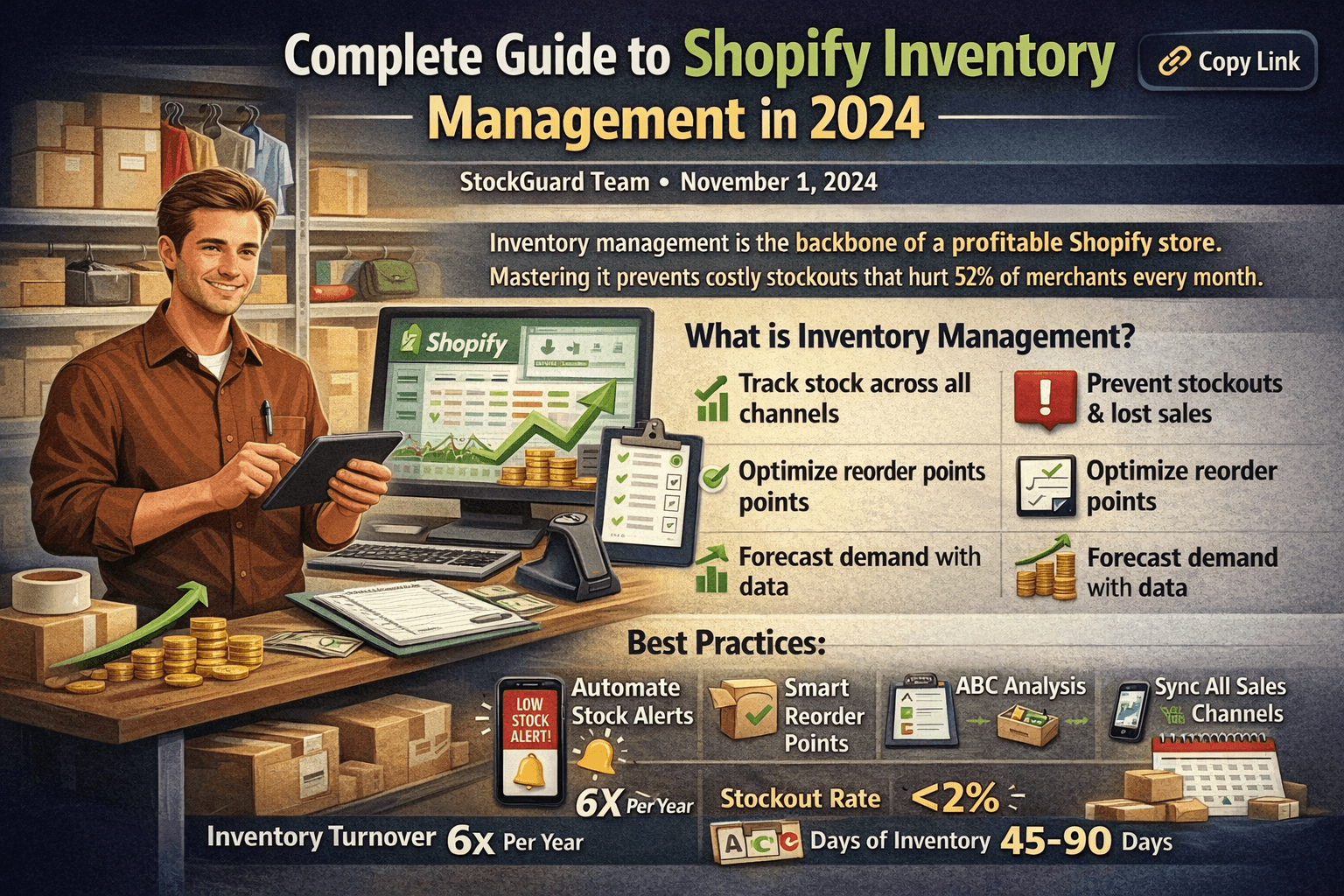
6 Shopify Inventory Best Practices to Prevent Stockouts in 2025
Learn proven Shopify inventory best practices to prevent costly stockouts. Includes reorder point formulas, ABC analysis, automation tips, and a getting started checklist.

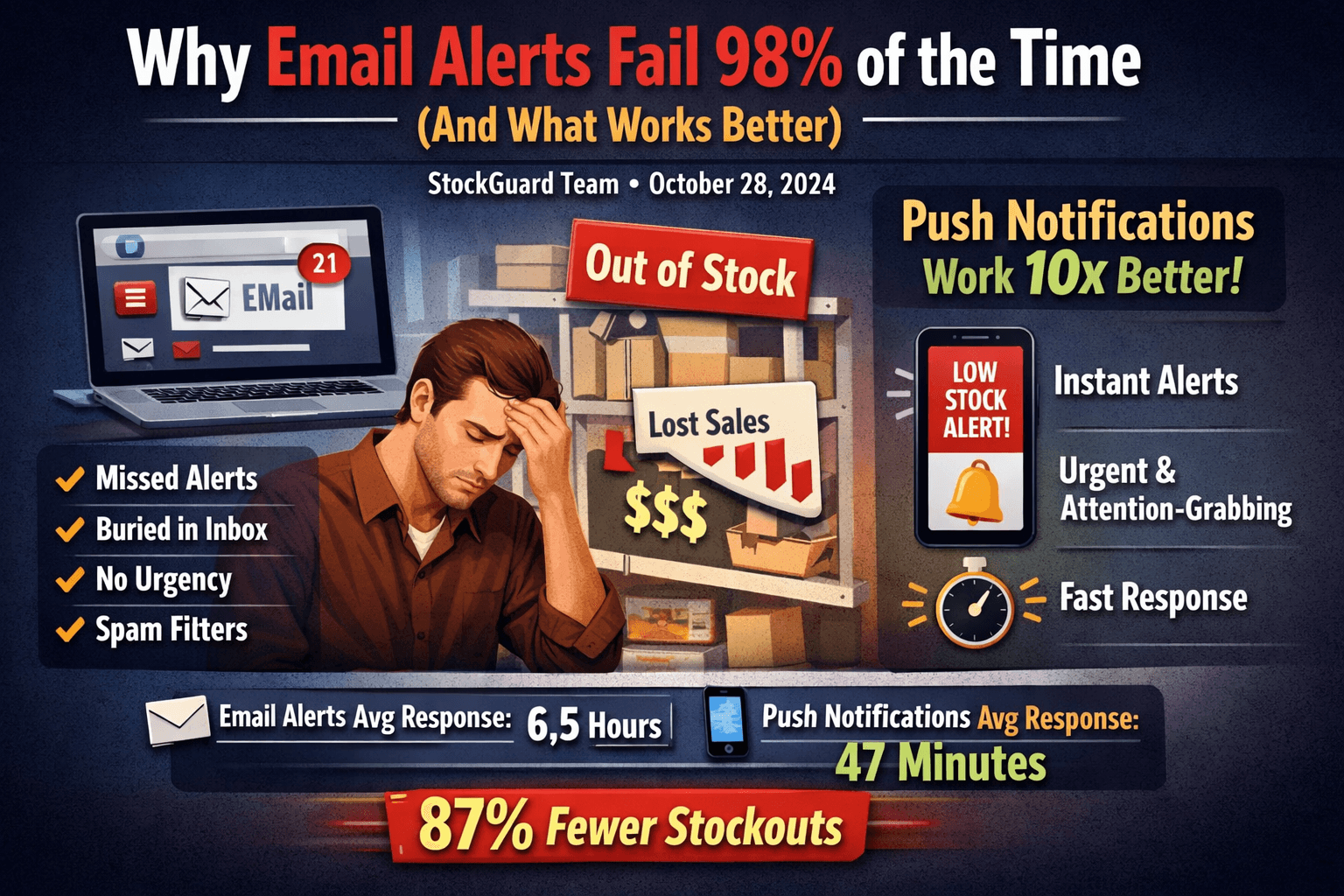
Why Email Alerts Fail 98% of the Time (And What Works Better)
Email alerts for low stock fail to prevent stockouts 98% of the time. Learn why push notifications are 10x more effective and how to reduce stockouts by 87%.

Best Shopify Low Stock Alert Apps (2025 Comparison)
Compare the best Shopify inventory alert apps. See which app offers push notifications, email alerts, Slack integration, and mobile-first experience for preventing stockouts.